Features
Making language models understandable.
Learn by observing and experimenting, from tokenization through training and fine-tuning to sampling. Explore the 2D generation view in Brain Explorer, use Wiki and Explain, and follow image generation in the Vision Explorer. The learning steps shown do not require your own scripts.

New in 0.2.0
From a concept to a visible computation.
Alpha 0.2.0 extends the learning path with Brain Explorer, Wiki and Vision: understand concepts, run your own experiments and inspect the computation step by step.
Brain Explorer
How is a reply built, token by token?
A 2D view connects context, transformer blocks, probabilities and sampling. Play a recording, pause it or inspect each step individually.
Token lanes reveal attention, the MLP and the residual path. Compare two inputs through the same model in A/B and open the calculation in the Visual Explorer when needed. Explore supported local Llama/Qwen2 recordings too, including the KV cache where the recording supports it.
Wiki & Explain
What does the term on this screen mean?
Learning chapters and a searchable Wiki connect fundamentals to experiments. Explain mode describes highlighted terms beside the visible interface.
Explore tokens, attention, loss, sampling and image models in English, German or Romanian. Concept explanations on supported app pages and related Wiki topics help you learn without losing track of your experiment.
Vision & Vision Explorer
How does noise become an image?
Generate images locally with a supported model and open the recording directly in the Vision Explorer. Follow denoising step by step: state before, noise prediction and state after.
Inspect feature maps, numerical values and one selected cross-attention site between the image grid and text tokens. Train a small 32 × 32 pixel learning model on your own image-caption pairs or compare small captioning training runs. Additional runtimes, models and datasets download only after confirmation; CPU/GPU support and memory needs depend on the model.
Understand what your model does.
Go beyond training a model. Explore how it processes text and compare its predictions across saved training checkpoints.
Explore step by step
Follow tokens through embeddings, attention and output. The learning lab explains the steps of a recorded pass and shows how temperature and filters change selection probabilities.
Compare training checkpoints
Compare checkpoints using the same prompt. Recorded-candidate ranks, difference bars and a manual A/B view reveal changes in next-token predictions. Export the comparison table as CSV.
Train with examples
Move from pre-training to fine-tuning: SFT learns from example replies, DPO from preferred and rejected replies, and ORPO combines response tuning with a preference signal. Download offered datasets or edit your own examples in dedicated editors.
Keep track of checkpoints
Manage and rename saved checkpoints, inspect their recorded history and Best markers, resume a run with its loss history, or open a state directly in Sampling or Chat.
Link local models and compare answers
Link a supported Llama or Qwen2 Safetensors folder without copying its weights. Choose CPU, NVIDIA GPU or A/B and check memory before loading.
Continue after a restart
Inputs, chat history and fine-tuning drafts are restored locally. They are stored unencrypted in the app-data area and can be cleared in Settings.
Plan GPU and memory use
Review estimated training VRAM or a linked model’s RAM/VRAM plan before starting. Available runtime measurements remain separate from estimates.
Ranks and probabilities refer to the recorded candidates. “Best” is a historical marker, not a quality rating. Memory figures are estimates. External execution supports Llama/Qwen2 text models without quantization, custom code or multimodality. A/B does not judge either answer; texts are saved only when you choose to.
01 / Data & tokenizers
From source text to tokens
Prepare datasets and inspect how your tokenizer splits text into individual tokens.
02 / Training & checkpoints
Follow the progress
Track training and validation, resume runs from checkpoints and optionally stop them with a configured stopping rule.
03 / Sampling & chat
Try your model
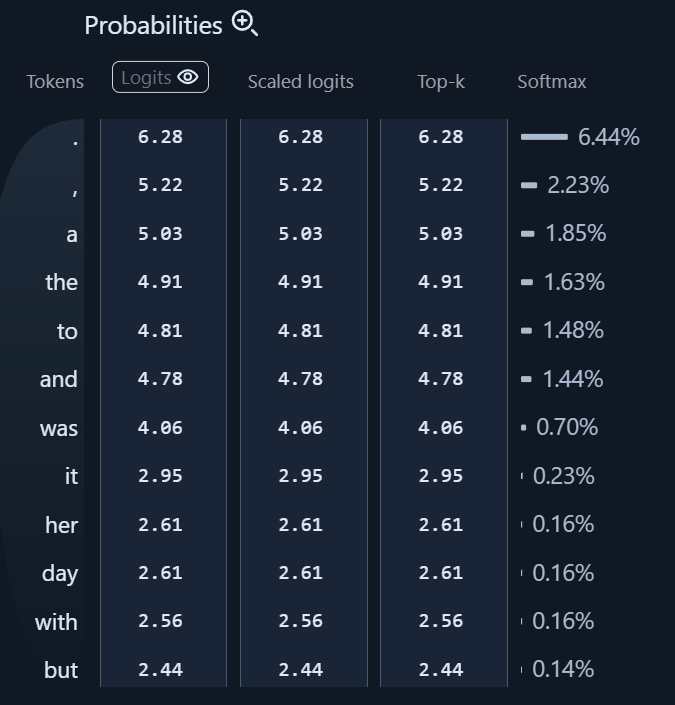
Inspect outputs and experiment with temperature, Top-k and Top-p.
04 / Local drafts
Continue after a restart
The app restores inputs, chat history and editor drafts. They are stored unencrypted in the local app-data area and can be cleared in Settings.
05 / External models & A/B
Link local Safetensors
Link a supported Llama or Qwen2 model. Run it on CPU or one NVIDIA GPU — or compare two answers one after the other.
06 / Visual Explorer
Make computation visible
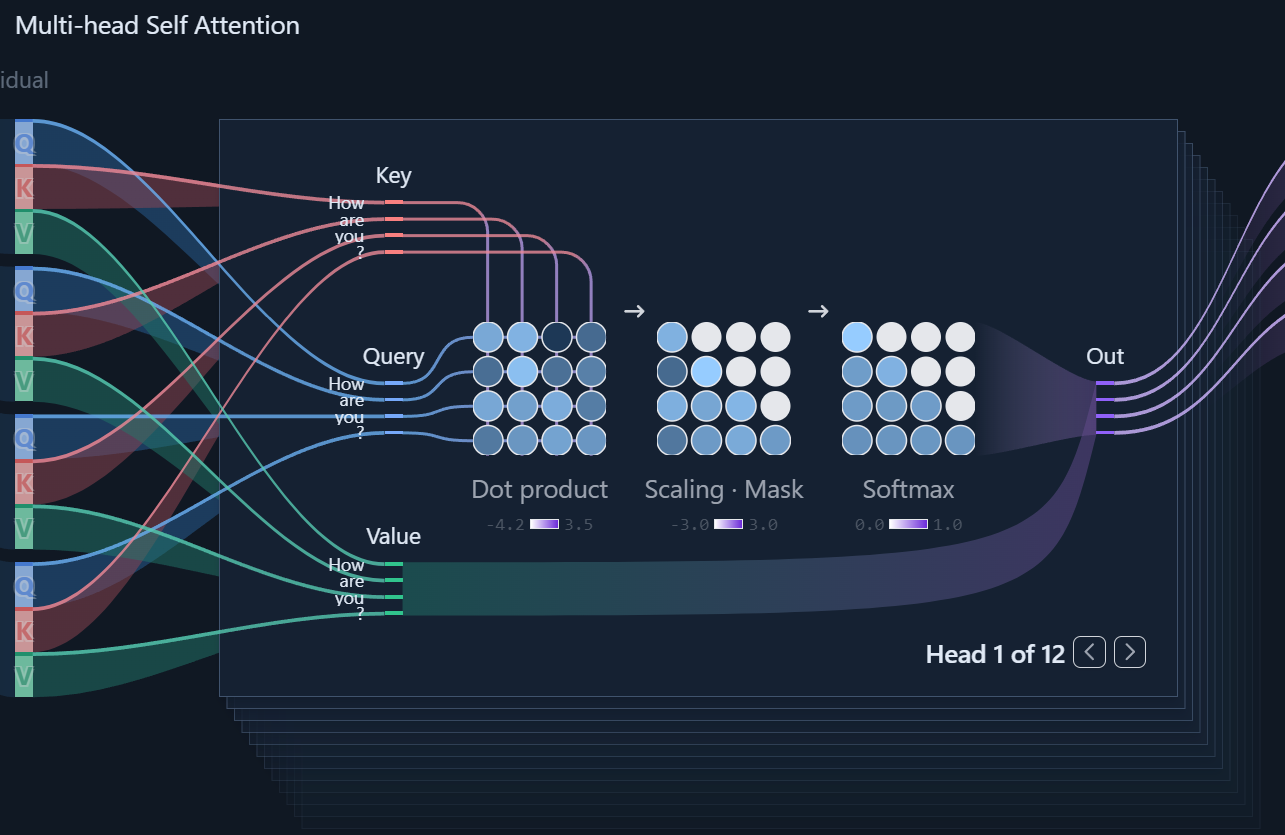
Explore embeddings, individual attention heads, the MLP and the distribution over possible next tokens.
07 / Learning chapters
Keep the theory close
Read the language-model fundamentals and use interactive examples inside the application.
08 / Windows & PyTorch
Work on your computer
A native Windows interface with a local training engine, installed separately when needed.
Inside the application.
Original screenshots of the earlier alpha with its English interface. Captures show different example states; training values are not performance benchmarks.
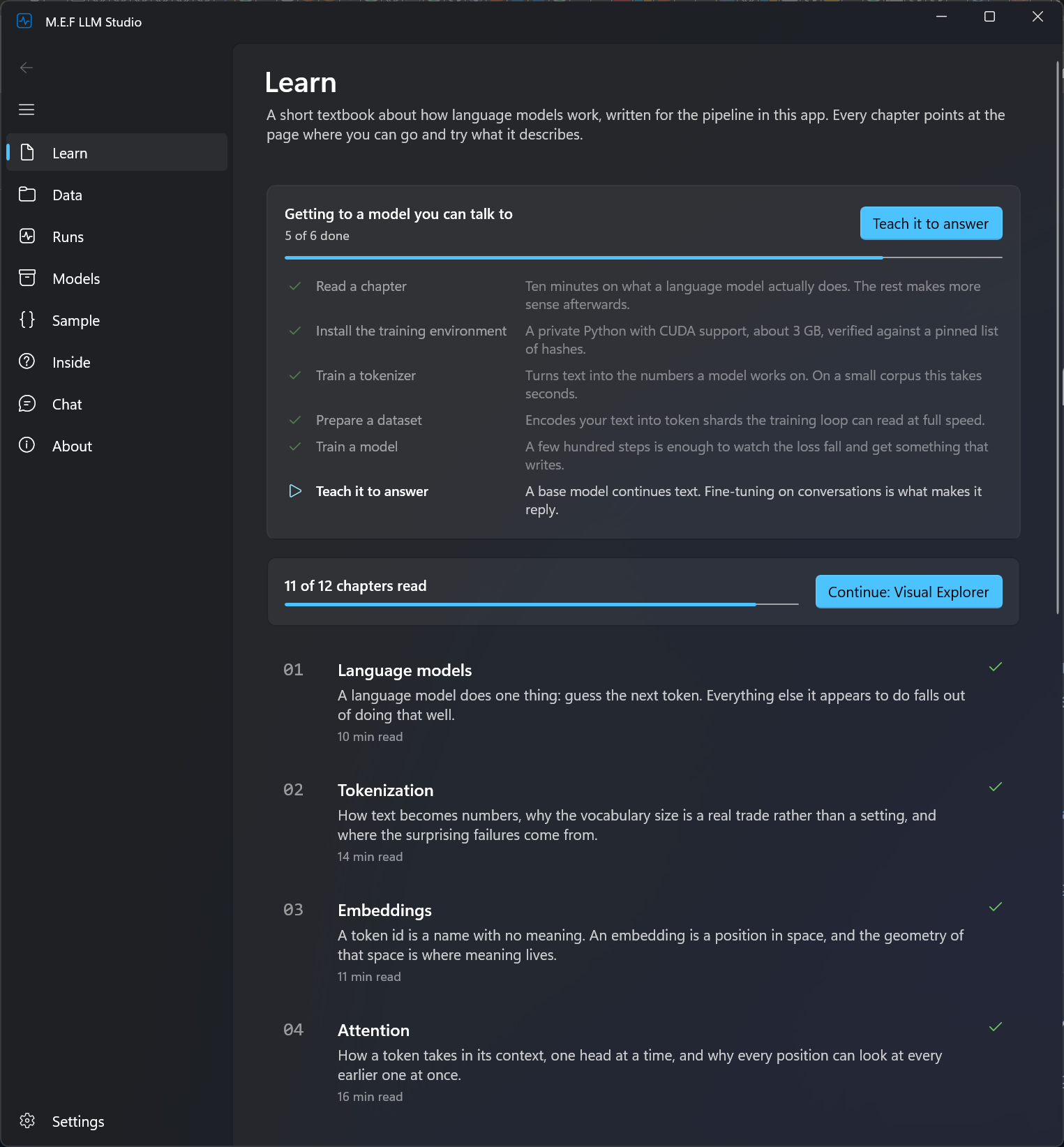
LEARN
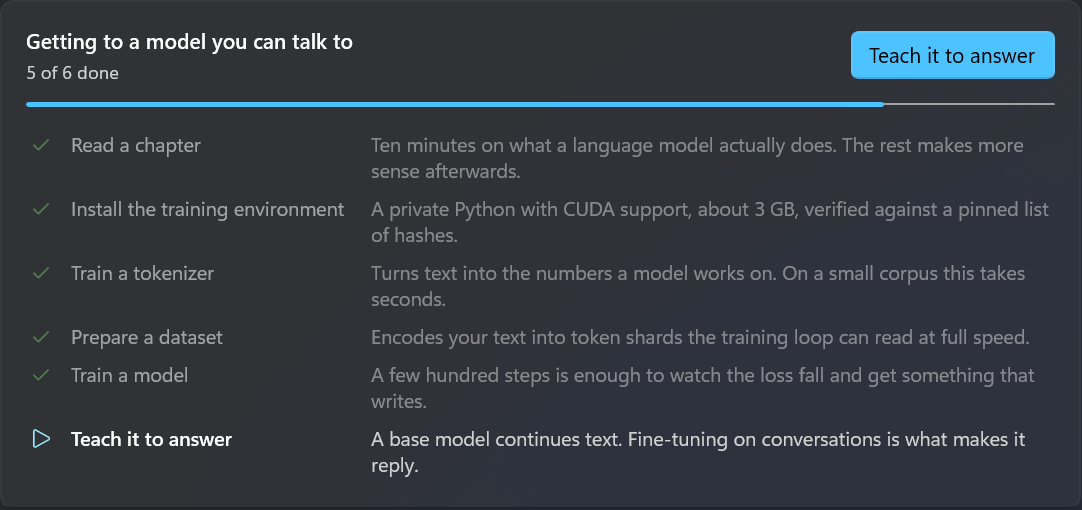
Learning path & next steps
The overview connects learning chapters and setup into one workflow.
What you can do:
Read the fundamentals, then continue to the next step: set up the environment, prepare data or train.
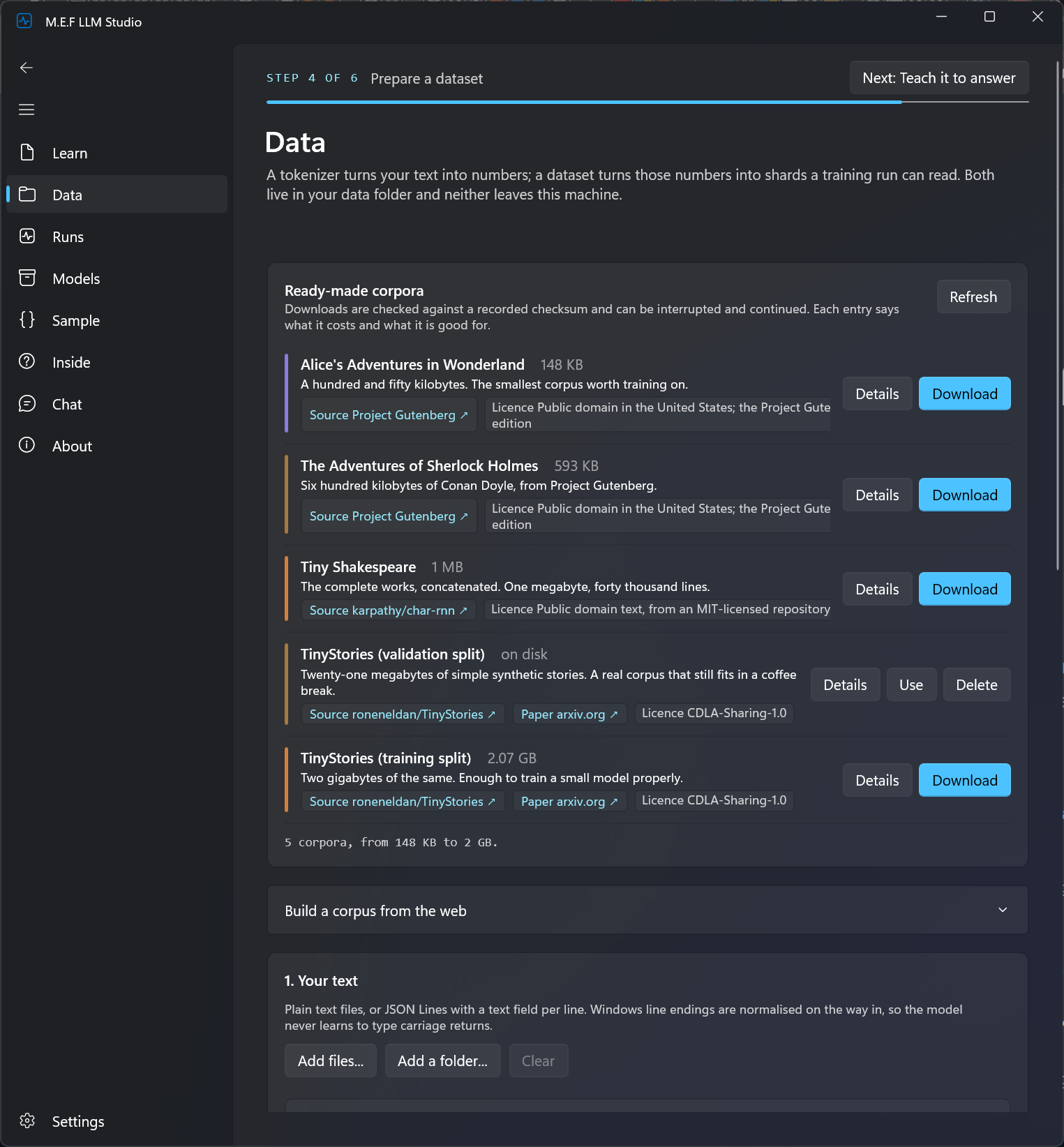
Full window capture ↗DATA
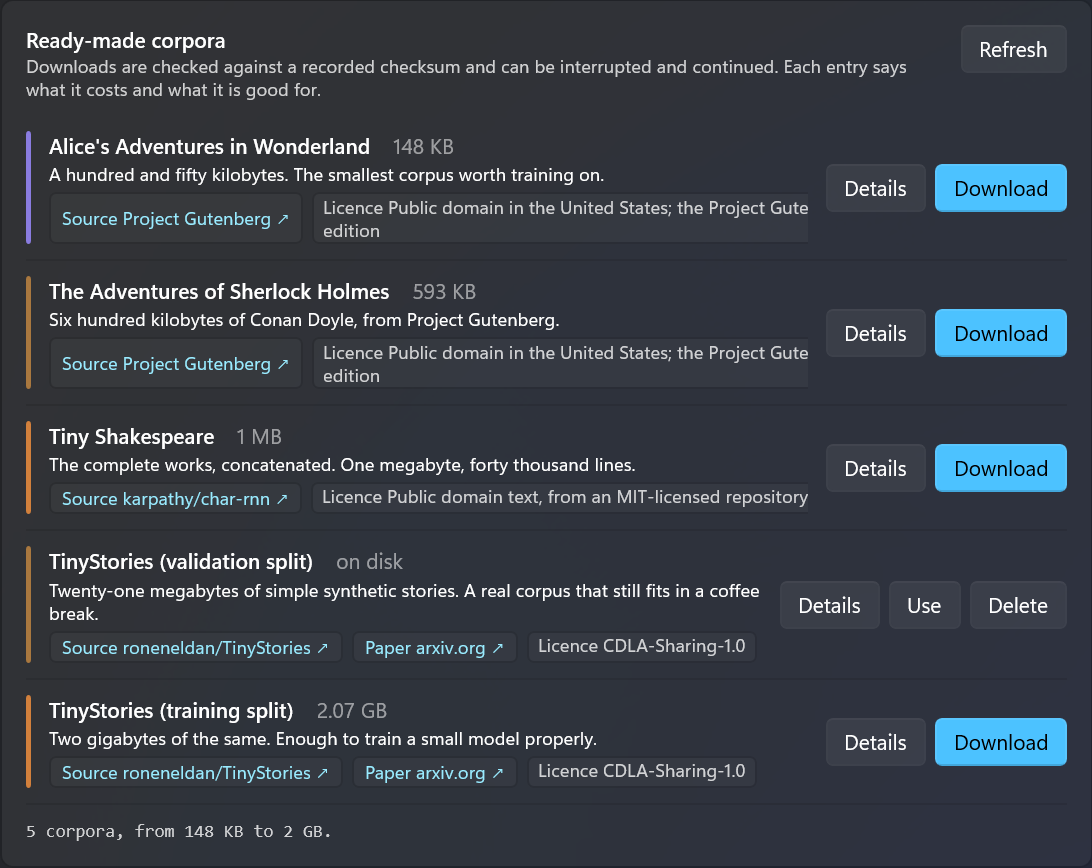
Choose training data
The catalogue lists text collections with sources, sizes and license notices.
What you can do:
Inspect the details and download suitable data. Check the usage conditions of each source.
Full window capture ↗RUNS
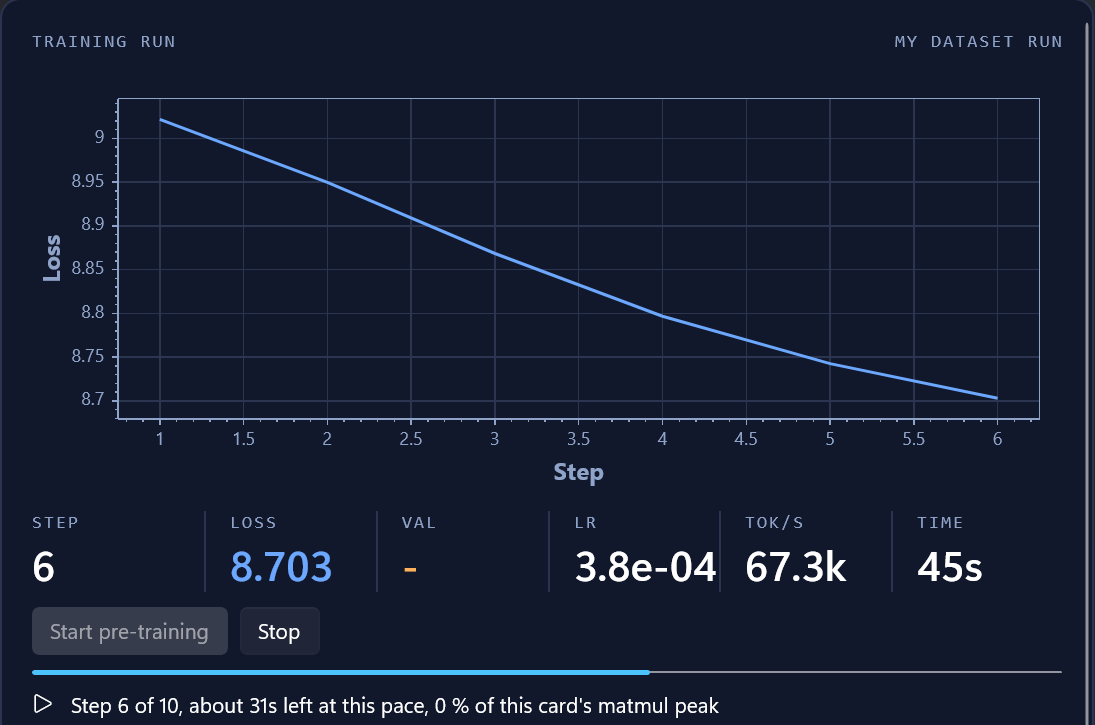
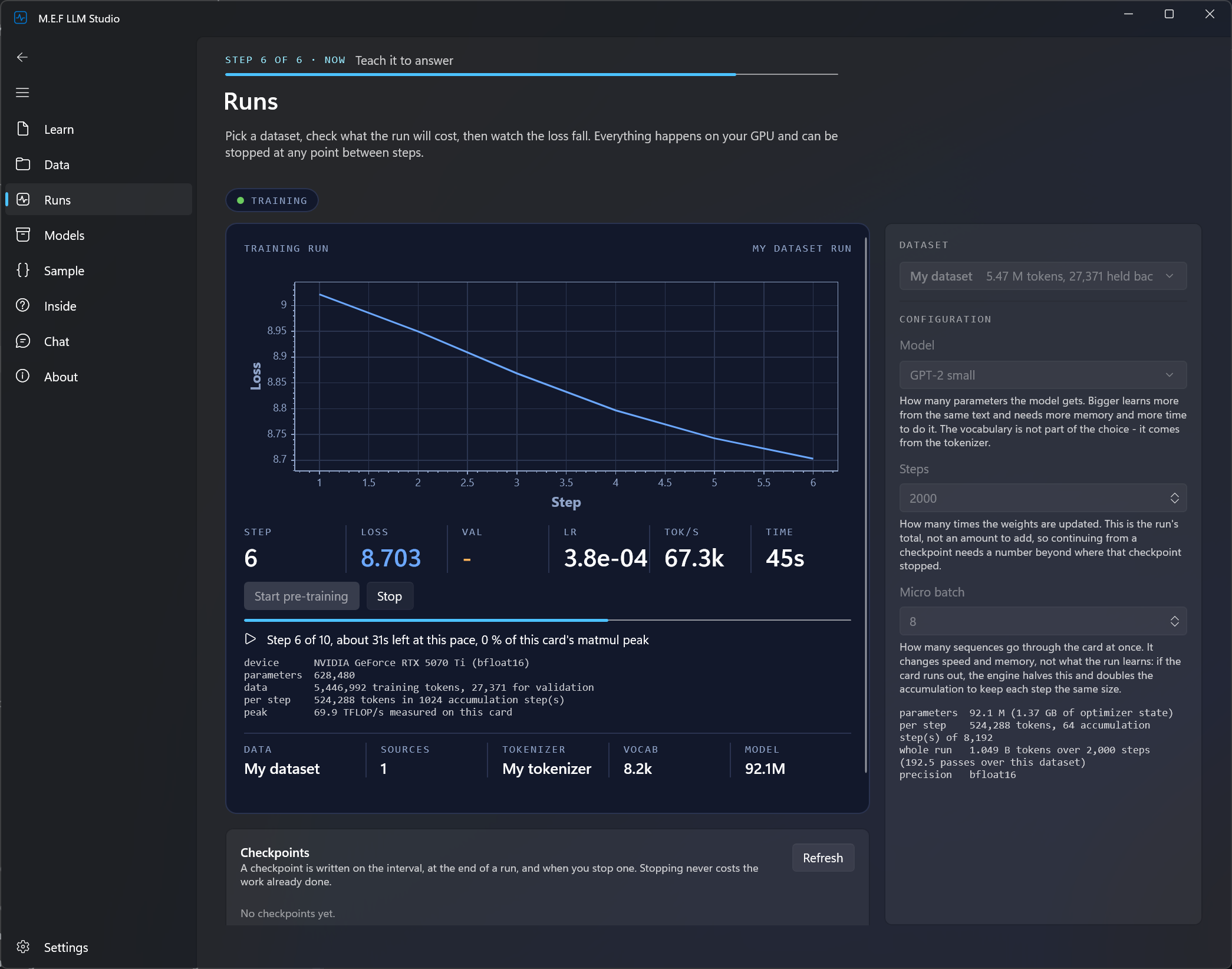
Follow a training run
The loss curve, step count and elapsed time show how a run is progressing.
What you can do:
Monitor the run and stop it when needed. The displayed measurements are examples, not a performance promise.
Full window capture ↗MODELS
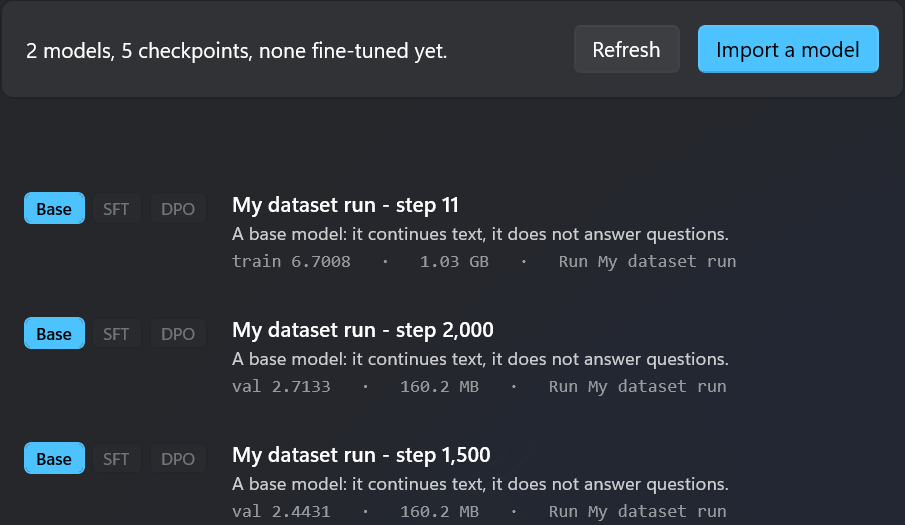
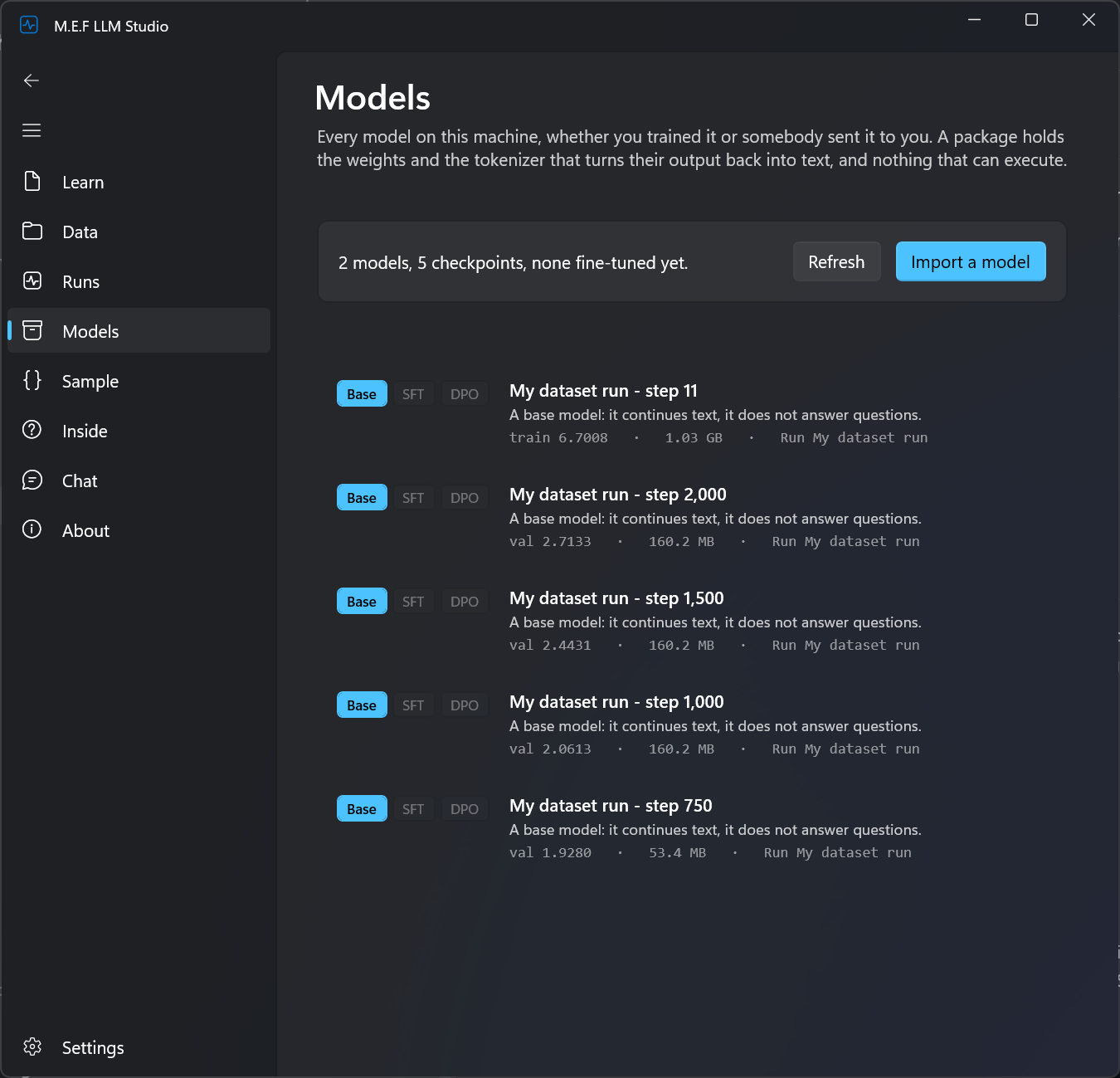
Models & checkpoints
The model overview organizes saved states and shows their training stage.
What you can do:
Select a suitable state for your next evaluation or import a model package.
Full window capture ↗CHAT
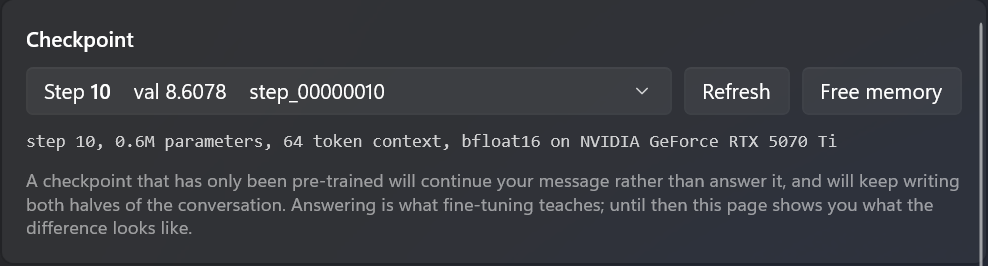
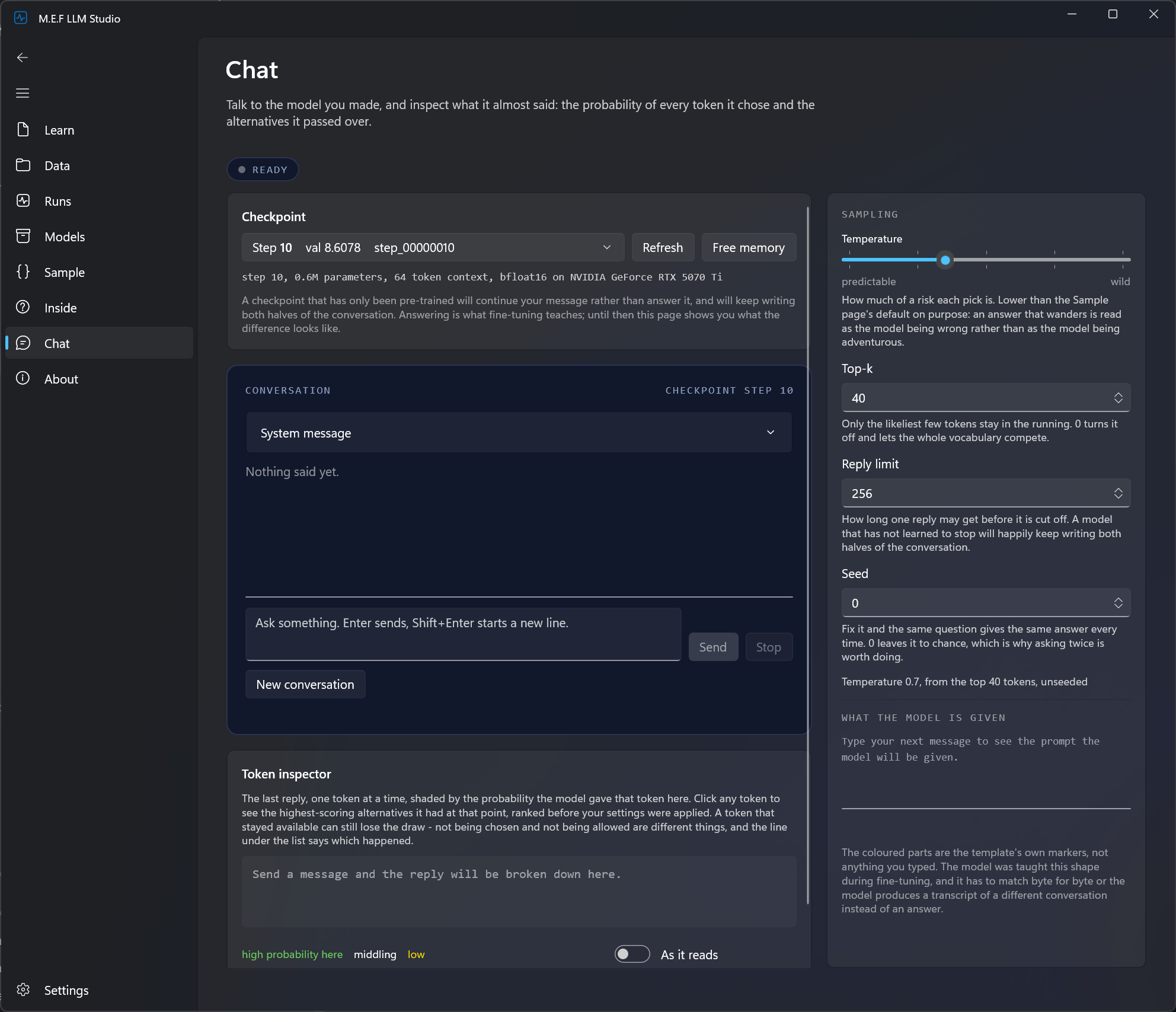
Choose a chat checkpoint
The selector shows which model state the chat uses.
What you can do:
Choose a checkpoint, refresh the list or release the memory occupied by the model.
Full window capture ↗CHAT
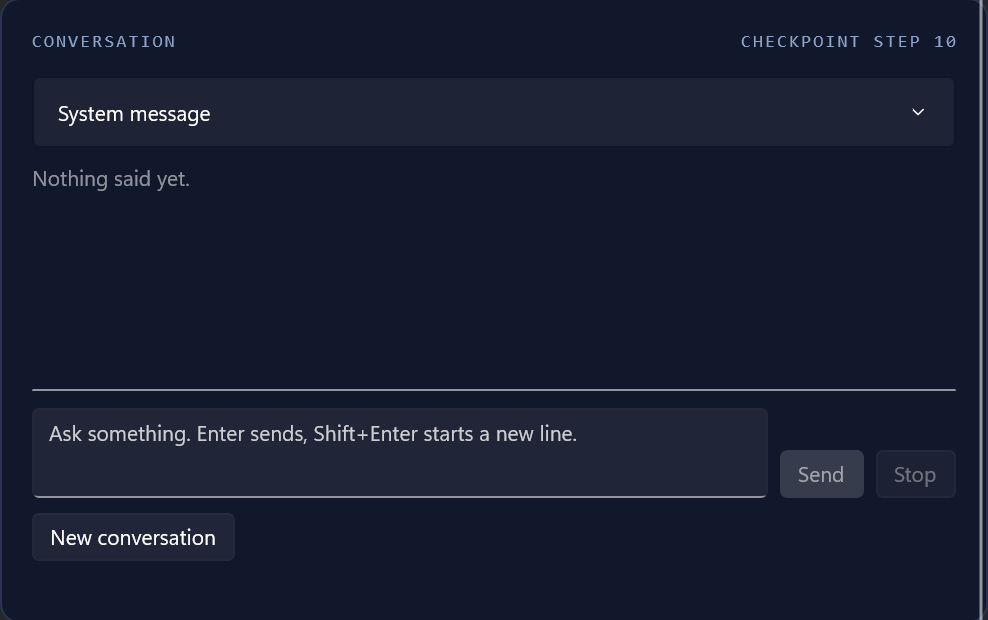
Try model outputs
The conversation area displays inputs and generated text. The two captures show different states.
What you can do:
Try your model. A pretrained base model continues text; useful answers require suitable training.
Full window capture ↗CHAT
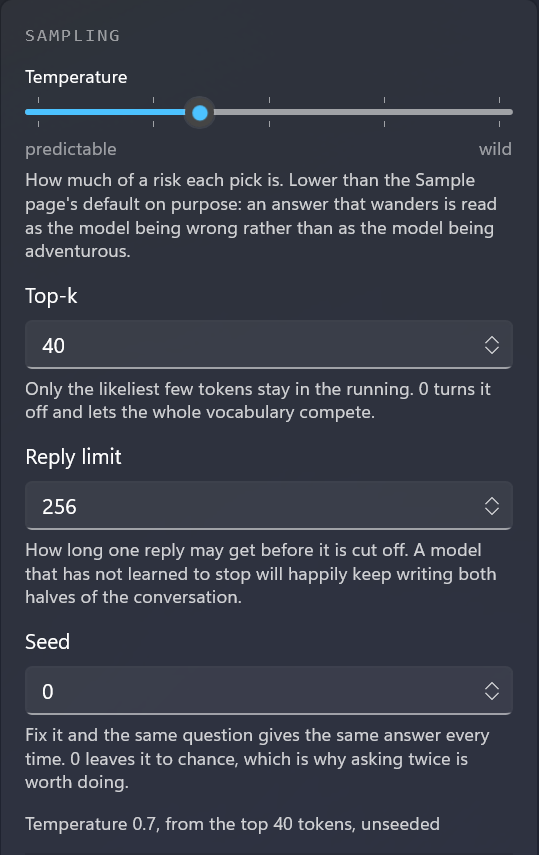
Control generation
Temperature, Top-k, reply limit and seed influence text generation.
What you can do:
Compare settings. A fixed seed supports repeatable experiments under the same conditions.
Full window capture ↗Visual Explorer: examples and attribution
An additional visualization based on Transformer Explainer (Polo Club of Data Science), adapted for recorded computations from M.E.F LLM Studio. Transformer Explainer ↗
From a token to a probability.
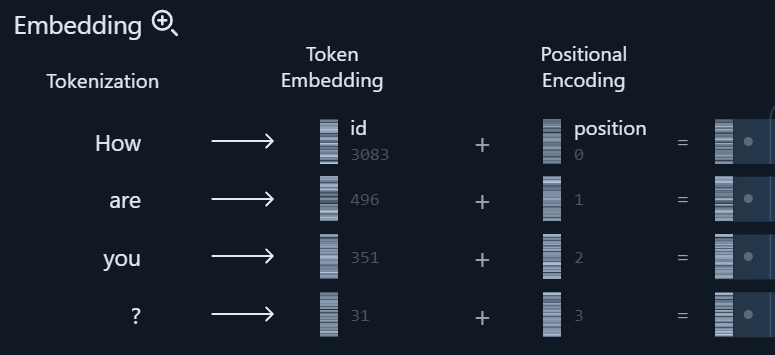
01Embedding
Token IDs and position information before the first Transformer block.
02Attention in detail
Dot product, scaling, causal masking and Softmax in context.
03Output probabilities
Logits and the sampling distribution over possible next tokens.
A view from the application, not browser inference. Values belong to the example recording shown.