Right in your browser
Understand the concepts
Look up terms such as tokenizer and attention in the Web Wiki. Use Explain to explore highlighted terms right here – no installation needed.
UNDERSTAND LANGUAGE MODELS · STEP BY STEP
M.E.F LLM Studio is an educational app for beginners: understand language models through clear explanations and small, hands-on experiments, without writing scripts. Follow the path from tokens through training to generated text. Brain Explorer, Wiki and Vision also make text and image generation explorable step by step.
CPU starting paths are available: chapters, data preparation and supported pretrained models do not require an NVIDIA GPU. Computation can take substantially longer on CPU and needs enough RAM. Training and Vision have their own requirements; the guide explains the limits for each path. Explore the CPU starting path →

Right in your browser
Look up terms such as tokenizer and attention in the Web Wiki. Use Explain to explore highlighted terms right here – no installation needed.
In the Windows app
Go from your own text through a tokenizer and dataset to a small language model. The step-by-step guide walks you through the Windows app.
Browser demo and app
Follow a recorded text generation in Demo Explorer, from context to the next token. In the app, you can also explore how images are generated.
Why I am building this
The more I worked with LLMs, the more I wanted to understand what happens behind the answers. And how could I explain it to my son or my wife, who use these models without knowing how they work?
That is where M.E.F LLM Studio came from: trying things yourself, making connections visible and taking away a little of the unease around the apparent magic.
Read the whole story →M.E.F LLM STUDIO
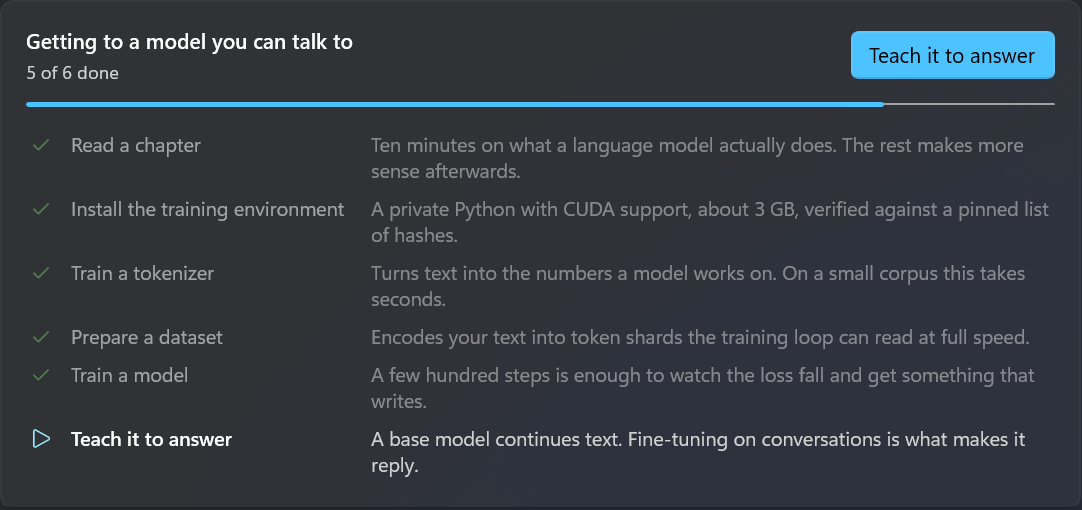
Read what a tokenizer does, then inspect your own text. Learn what loss means, then follow a training run. The learning overview connects the fundamentals with practical tools, turning terminology into relationships you can observe.
The Windows application’s learning overview. The progress shown is an example state.
Getting started ↗DATA
Split your own sentences into tokens and explore why tokens are not simply words.
RUNS
Follow loss and validation and explore what these measurements tell you about a run—and what they do not.
MODELS
Save model states and use them to compare results at different points in training.
CHAT
Try a prompt and inspect how sampling affects the selection of the next tokens.
01 — THE LEARNING PATH
Repeat this learning cycle for each topic. Small, manageable experiments are the focus; you do not need to train a large model.
Read the relevant chapter: What are tokens? How does a model learn? What does a loss curve tell you?
Work with a short text or a small model. Change one setting deliberately and observe what happens.
Compare your observation with the explanation. Even nonsensical output is a reason to examine the data, training and limitations more closely.
02 — M.E.F LLM STUDIO
Go beyond training a model. Explore how it processes text and compare its predictions across saved training checkpoints.
Explore learning and comparison features ↗New in 0.2.0
Alpha 0.2.0 extends the learning path with Brain Explorer, Wiki and Vision: understand concepts, run your own experiments and inspect the computation step by step.
How is a reply built, token by token?
A 2D view connects context, transformer blocks, probabilities and sampling. Play a recording, pause it or inspect each step individually.
What does the term on this screen mean?
Learning chapters and a searchable Wiki connect fundamentals to experiments. Explain mode describes highlighted terms beside the visible interface.
How does noise become an image?
Generate images locally with a supported model and open the recording directly in the Vision Explorer. Follow denoising step by step: state before, noise prediction and state after.